PowerPoint-to-PDF VBA Macro
Automating Tailored Financial Reports in PowerPoint with VBA
In FP&A workflows, generating recurring financial reports often requires distributing tailored presentations to multiple stakeholder groups, each with different levels of access to content. Manually editing slides for each audience can be time-consuming and error-prone. To address this challenge, I developed a pair of VBA macros that streamline the creation of audience-specific PowerPoint presentations and PDF exports, leveraging an Excel-based configuration file to dynamically control slide visibility.
1. Purpose of the Macros
The solution consists of two key VBA scripts:
GetSlideID – a utility macro that extracts unique slide identifiers from a PowerPoint presentation.
1
2
3
4
5
6
7
8
9
10
11
12
13
14
Public Sub GetSlideID()

    Dim slide As slide
    Dim slideID As Long

    ' Loop through each slide in the active presentation
    For Each slide In ActivePresentation.Slides
        ' Get the Slide ID
        slideID = slide.slideID
        ' Print the Slide ID in the Immediate Window (Ctrl+G to view)
        Debug.Print "Slide " & slide.SlideIndex & " has Slide ID: " & slideID
    Next slide

End Sub
SavePDF – a comprehensive macro that generates audience-specific presentations and exports them to PDF based on configurable rules.
Click here to expand
Public Sub SavePDF()

    'Notify user that the workbook is refreshing
    Dim refreshMsg As Object
    Set refreshMsg = CreateObject("WScript.Shell")
    refreshMsg.Popup "Refreshing. Do not close.", 2, "Please Wait", 64

    'Check if total slide number has changed before save attempt.
    Dim currentFolder As String
    currentFolder = ActivePresentation.Path

    Dim xlApp As Object
    Set xlApp = CreateObject("Excel.Application")

    Dim WorkbookName1 As String
    WorkbookName1 = currentFolder & "\PPT Printing Configuration.xlsx"

    Dim xlWorkbook As Object
    Set xlWorkbook = xlApp.Workbooks.Open(currentFolder & "\PPT Printing Configuration.xlsx")

    Dim xlWorksheet As Object
    Set xlWorksheet = xlWorkbook.Sheets("Slide ID")

    'Setup save directory
    Dim savePath1A, savePath1B, savePath2A, savepath2B, savePath3A, savePath3B, savePath4A, savePath4B, savePath5A, savePath5B As String
    savePath1A = Environ("USERPROFILE") & "\Downloads\Report - CEO.pptx"
    savePath1B = Environ("USERPROFILE") & "\Downloads\Report - CEO.pdf"
    savePath2A = Environ("USERPROFILE") & "\Downloads\Report - ET.pptx"
    savepath2B = Environ("USERPROFILE") & "\Downloads\Report - ET.pdf"
    savePath3A = Environ("USERPROFILE") & "\Downloads\Report - SLT.pptx"
    savePath3B = Environ("USERPROFILE") & "\Downloads\Report - SLT.pdf"
    savePath4A = Environ("USERPROFILE") & "\Downloads\Report - Misc_1.pptx"
    savePath4B = Environ("USERPROFILE") & "\Downloads\Report - Misc_1.pdf"
    savePath5A = Environ("USERPROFILE") & "\Downloads\Report - Misc_2.pptx"
    savePath5B = Environ("USERPROFILE") & "\Downloads\Report - Misc_2.pdf"

    'Setup input box
    Dim myInput As String
    myInput = inputbox("Enter 1 for CEO, 2 for ET, 3 for SLT, 4 for Misc_1, 5 for Misc_2:")

    'Open and read slides configuration spreadsheet
    Dim cellValue As String

    Select Case myInput
        Case "1"
            cellValue = xlWorksheet.Range("B2").Value
        Case "2"
            cellValue = xlWorksheet.Range("B3").Value
        Case "3"
            cellValue = xlWorksheet.Range("B4").Value
        Case "4"
            cellValue = xlWorksheet.Range("B5").Value
        Case "5"
            cellValue = xlWorksheet.Range("B6").Value
        Case ""
            MsgBox ("Input cannot be blank.")
            Exit Sub
    End Select

    Dim graphSlideID As Variant
    graphSlideID = Split(cellValue, ", ")

    'Store the original presentation in a variable
    Dim originalPPT As Presentation
    Set originalPPT = ActivePresentation

    'Create a copy of the original presentation
    Dim newPPT As Presentation

    Select Case myInput
        Case "1"
            originalPPT.SaveCopyAs savePath1A
            Set newPPT = Presentations.Open(savePath1A, WithWindow:=msoFalse)
        Case "2"
            originalPPT.SaveCopyAs savePath2A
            Set newPPT = Presentations.Open(savePath2A, WithWindow:=msoFalse)
        Case "3"
            originalPPT.SaveCopyAs savePath3A
            Set newPPT = Presentations.Open(savePath3A, WithWindow:=msoFalse)
        Case "4"
            originalPPT.SaveCopyAs savePath4A
            Set newPPT = Presentations.Open(savePath4A, WithWindow:=msoFalse)
        Case "5"
            originalPPT.SaveCopyAs savePath5A
            Set newPPT = Presentations.Open(savePath5A, WithWindow:=msoFalse)
    End Select

    'Delete slides that are not in the graphSlideID array
    Dim i As Integer
    For i = newPPT.Slides.Count To 1 Step -1
        Dim slideExistsInArray As Boolean
        slideExistsInArray = False
        Dim id As Variant
        For Each id In graphSlideID
            If newPPT.Slides(i).slideID = id Then
                slideExistsInArray = True
                Exit For
            End If
        Next id
        If Not slideExistsInArray Then
            newPPT.Slides(i).Delete
        End If
    Next

    newPPT.Save

    Select Case myInput
        Case "1"
            newPPT.ExportAsFixedFormat Path:=savePath1B, fixedformattype:=ppFixedFormatTypePDF
        Case "2"
            newPPT.ExportAsFixedFormat Path:=savepath2B, fixedformattype:=ppFixedFormatTypePDF
        Case "3"
            newPPT.ExportAsFixedFormat Path:=savePath3B, fixedformattype:=ppFixedFormatTypePDF
        Case "4"
            newPPT.ExportAsFixedFormat Path:=savePath4B, fixedformattype:=ppFixedFormatTypePDF
        Case "5"
            newPPT.ExportAsFixedFormat Path:=savePath5B, fixedformattype:=ppFixedFormatTypePDF
    End Select

    newPPT.Close

    'Close configuration file and release variables
    xlWorkbook.Close SaveChanges:=False
    xlApp.Quit

    Set xlWorksheet = Nothing
    Set xlWorkbook = Nothing
    Set xlApp = Nothing

    'Delete intermediary PPTX file.
    Select Case myInput
        Case "1"
            If Len(Dir$(savePath1A)) > 0 Then
                Kill savePath1A
            End If
        Case "2"
            If Len(Dir$(savePath2A)) > 0 Then
                Kill savePath2A
            End If
        Case "3"
            If Len(Dir$(savePath3A)) > 0 Then
                Kill savePath3A
            End If
        Case "4"
            If Len(Dir$(savePath4A)) > 0 Then
                Kill savePath4A
            End If
        Case "5"
            If Len(Dir$(savePath5A)) > 0 Then
                Kill savePath5A
            End If
    End Select

    'Confirm success
    MsgBox ("Export complete. Please check your Downloads folder.")

End Sub
Together, these scripts enable automated, flexible, and secure reporting that adapts to changing audience requirements without manual intervention.
2. Extracting Slide IDs with GetSlideID
PowerPoint assigns a unique slideID to each slide, which remains constant even if slides are reordered. The GetSlideID macro leverages this property to create a reliable reference for filtering slides.
When executed, the macro prints each slide’s index and its unique ID in the Immediate Window. These IDs are then recorded in an Excel configuration file alongside descriptive metadata and audience access flags, forming the foundation for automated slide selection.
3. Configuring Audience Permissions in Excel
The Excel configuration file serves as a central control panel for determining which slides are visible to each audience. A sample structure includes:
| Slide | Slide ID | CEO Used | ET Used | SLT Used | OPS Used | Description |
|---|---|---|---|---|---|---|
| 2 | 1127 | TRUE | TRUE | TRUE | FALSE | Description 1127 |
| 3 | 1153 | TRUE | TRUE | TRUE | FALSE | Description 1153 |
| 4 | 1274 | TRUE | FALSE | FALSE | FALSE | Description 1274 |
Each slide is tagged with boolean flags indicating whether it should be included for a particular audience, such as CEO, ET, or SLT. Formulas in the workbook generate concatenated slide ID strings for each audience, which the SavePDF macro reads to filter slides dynamically. Indexes are also dynamically calculated based on the above.
You can find the sample configuration file here.
4. Automating Presentation Generation with SavePDF
The SavePDF macro orchestrates the process of generating audience-specific presentations and exporting them as PDFs. Its workflow is as follows:
User Input – The macro prompts the user to select the target audience, such as CEO, ET, or SLT.
Load Slide IDs – It reads the pre-generated slide ID string for the selected audience from the Excel configuration workbook.
Copy Original Presentation – To preserve the master file, the macro saves a copy of the active presentation.
Filter Slides – Iterates through the copied presentation and deletes slides not included in the audience’s slide ID list.
Export to PDF – Saves the filtered presentation as both a PowerPoint file and a PDF in the user’s Downloads folder.
Cleanup – Closes the temporary presentation, the Excel configuration file, and deletes intermediary files to keep the workspace tidy.
This approach ensures each stakeholder receives only the slides they are authorized to view, eliminating manual slide deletion and reducing the risk of errors.
End user only needs to specify the report type, and the macro will take care of the rest.
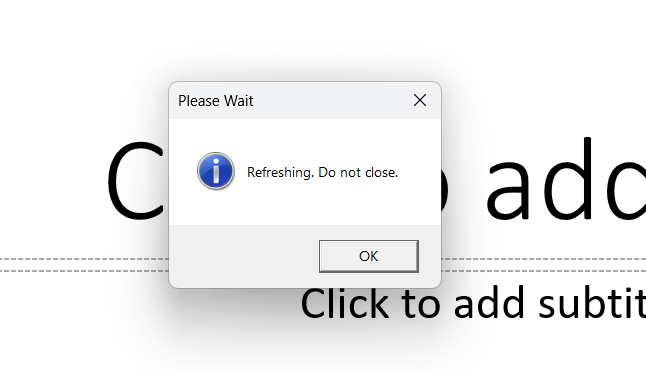 Wait for OneDrive refresh first if hosted in SharePoint
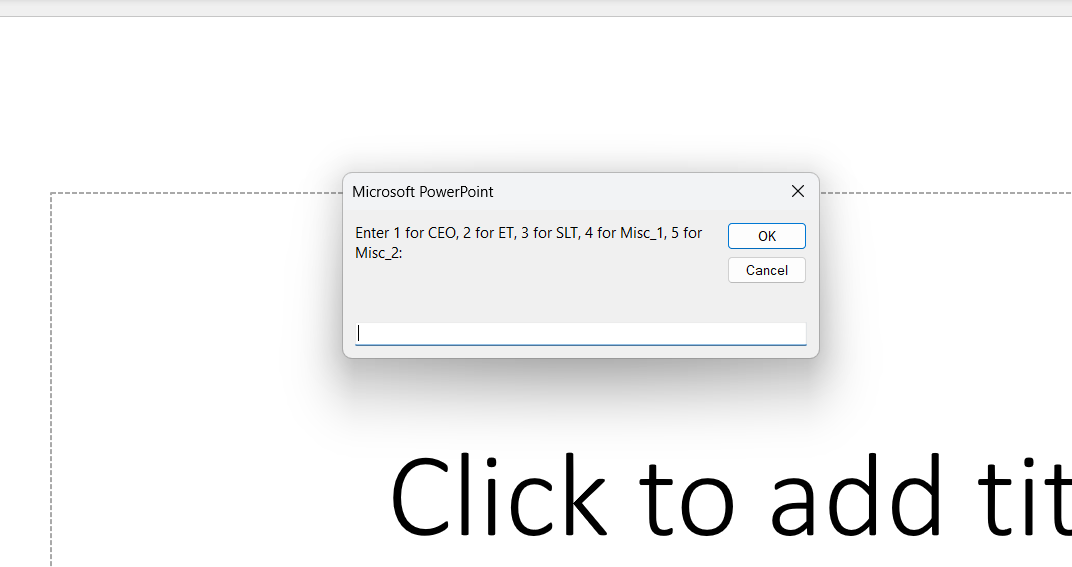 User selection window
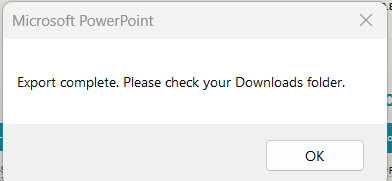 Complete notification
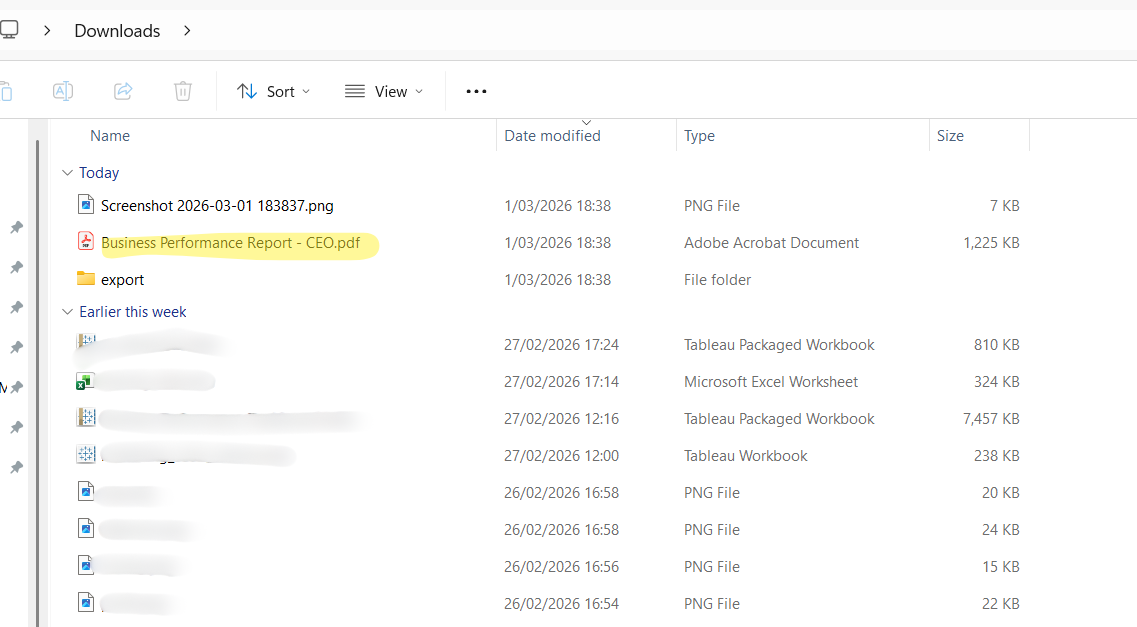 PDF file now in Downloads folder
5. Benefits and Impact
Implementing these macros provides several advantages for FP&A reporting:
Efficiency - reduces the time required to generate multiple audience-specific reports from hours to minutes.
Accuracy - eliminates human errors that occur when manually editing slides.
Flexibility - adjusting audience access is as simple as updating the Excel configuration file, without modifying the VBA code.
Scalability - supports multiple groups, each with a distinct subset of slides, allowing the process to grow with organizational needs.